Privacy and settings
Consent
Open PixelPair → Privacy. The consent summary explains the detected integration. With no detected consent tool, marketing is allowed by default after a connection is enabled. With a recognized tool, unresolved or denied consent blocks tracking. Enable Wait for marketing consent if you require an explicit decision even when no tool is detected.
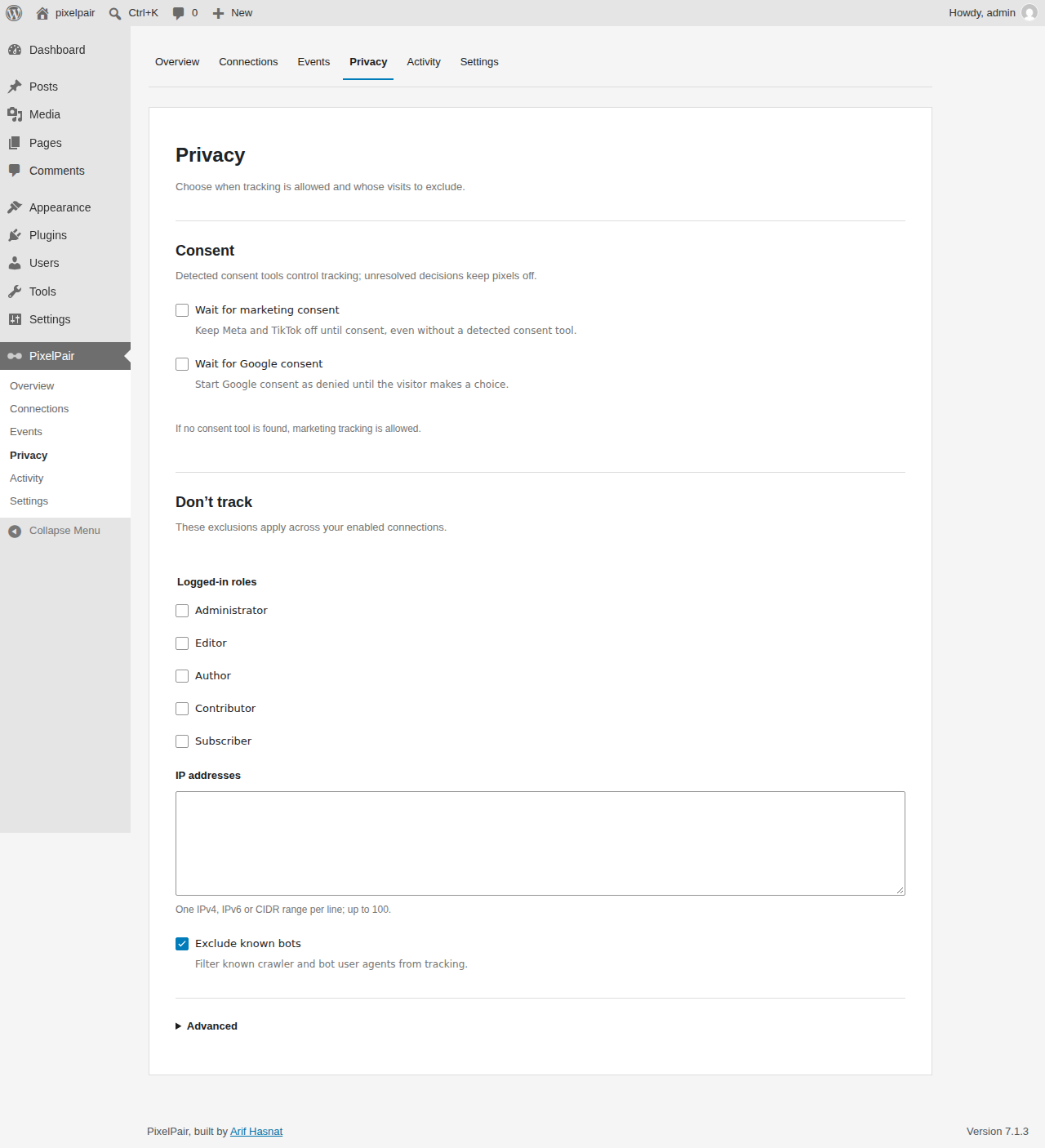
Supported adapters include WP Consent API, Cookiebot, Complianz, CookieYes, Borlabs Cookie v3 and Real Cookie Banner. Some integrations require service IDs. See consent configuration for exact behavior; test your installed CMP version.
Exclude visits
Under Don't track, select roles, enter one IPv4/IPv6 address or CIDR range per line, and choose bot filtering. Save once after editing the form. Role exclusions apply to every visitor with that role; onboarding's self-exclusion uses your current roles.
Use your site's observed public address when excluding your own IP. Changing networks or using a VPN can change that address. An IP exclusion always adds an uncached eligibility check. If you exclude your administrator role, use a signed-out browser window to test tracking.
General settings
Settings contains logging/retention, permission management, import/export and the About section. Grant PixelPair management only to roles that should change tracking. Deactivation keeps configuration; deletion can remove it unless retention is enabled.
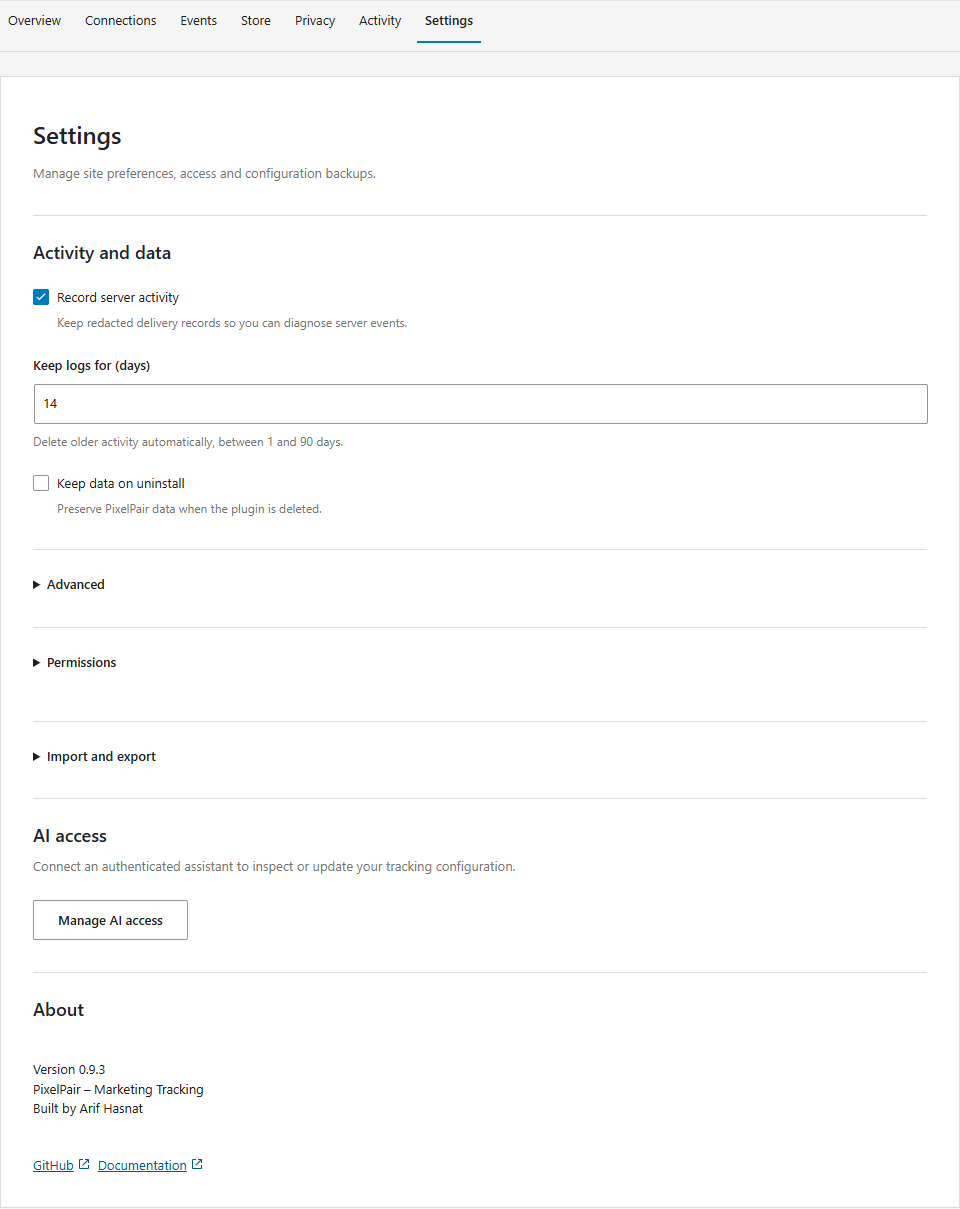
Cache and proxy settings
Open Settings → Advanced. Default fast mode evaluates role/context exclusions during PHP rendering and assumes page caches bypass logged-in visitors. Enable Strict cache mode when a cache can serve shared pages to logged-in visitors. It checks each visitor through an extra uncached request before tracking.
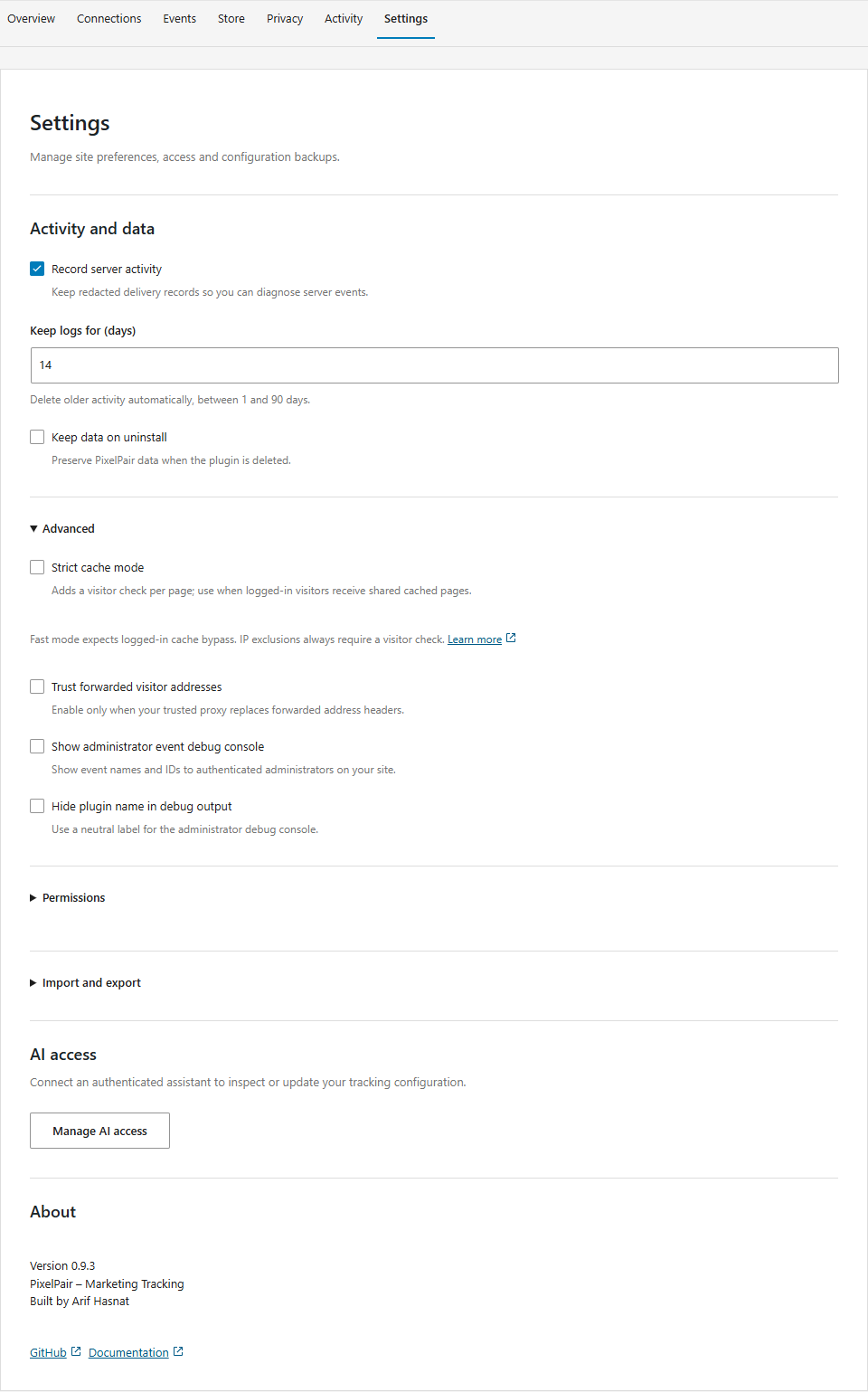
Purge the page cache after settings or consent-plugin changes in either mode. Enable trusted-proxy handling only when your proxy replaces the forwarded address header and prevents direct origin access. The development reference explains the cache and eligibility trade-offs.
Import and export
Open Settings → Import and export to download saved preferences and custom events. Credentials, executable scripts and permission grants are excluded. Keep the exported JSON as a configuration backup, not a credential backup.
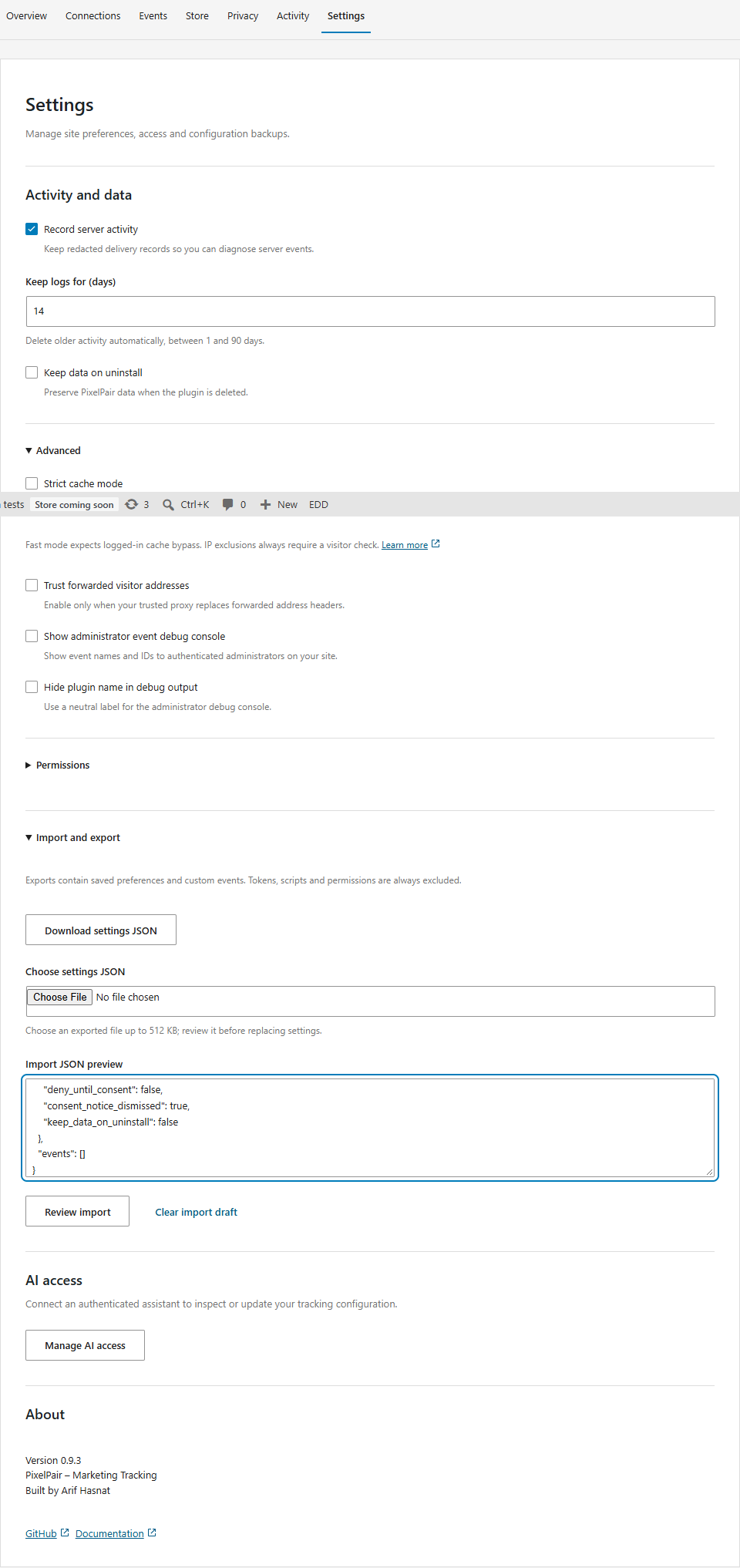
Import validates the document, shows a preview and requires confirmation. It replaces preferences and all custom events, and can enable tracking. Existing secrets and grants are preserved. If a follow-up reload fails, use the offered retry before editing settings; stale forms stay locked to avoid overwriting the import.
Do not publish a site's exported configuration without reviewing it: public IDs, URL rules and other business configuration may still be present even though tokens are excluded.