Choose what gets tracked
Open PixelPair → Events. Automatic events cover common site interactions; Custom events let you define a specific trigger and mapping.
Automatic events
Find the event by its plain-language name and use its toggle. List toggles save immediately. The confirmation offers Undo to restore the previous value.
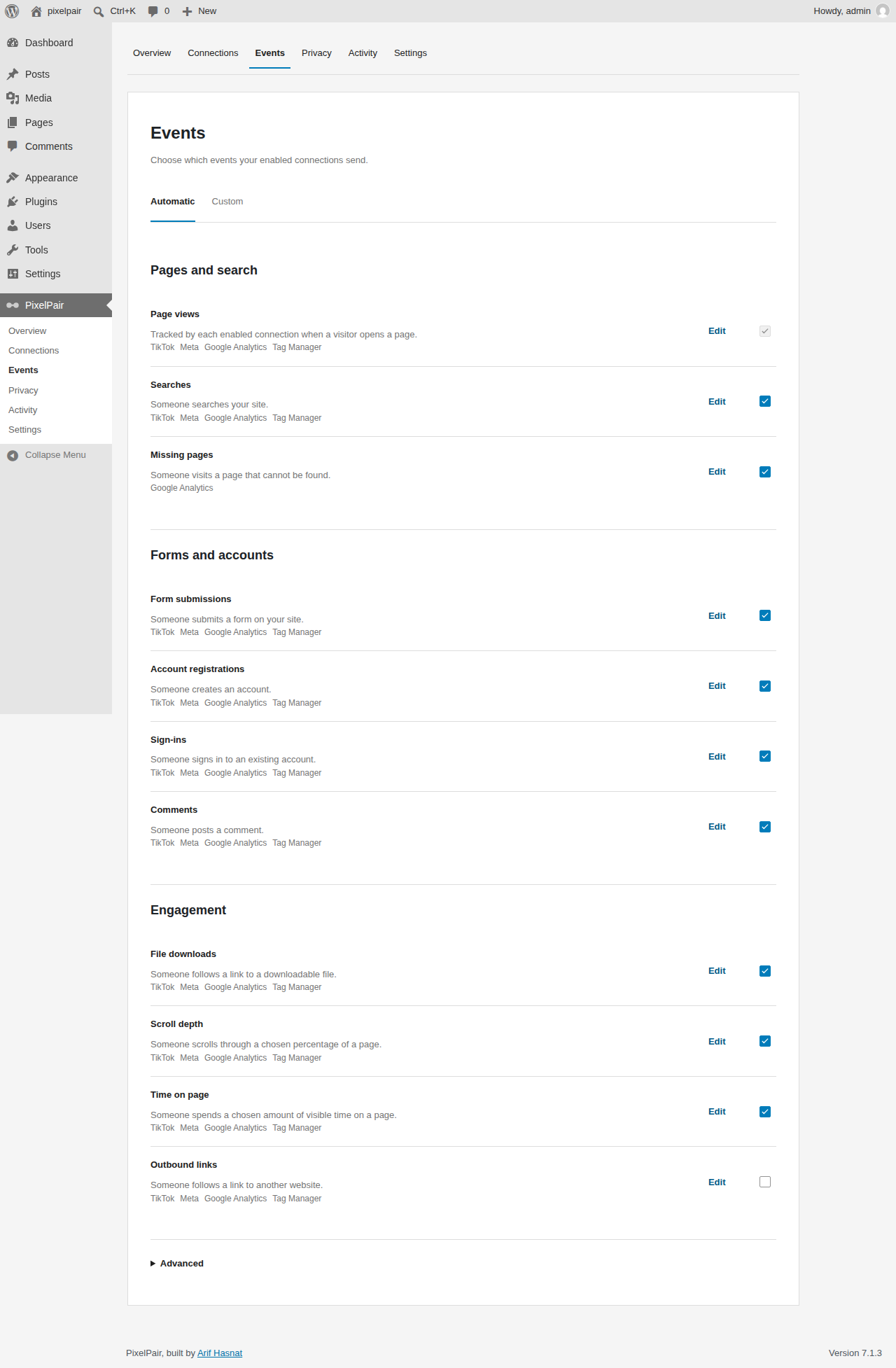
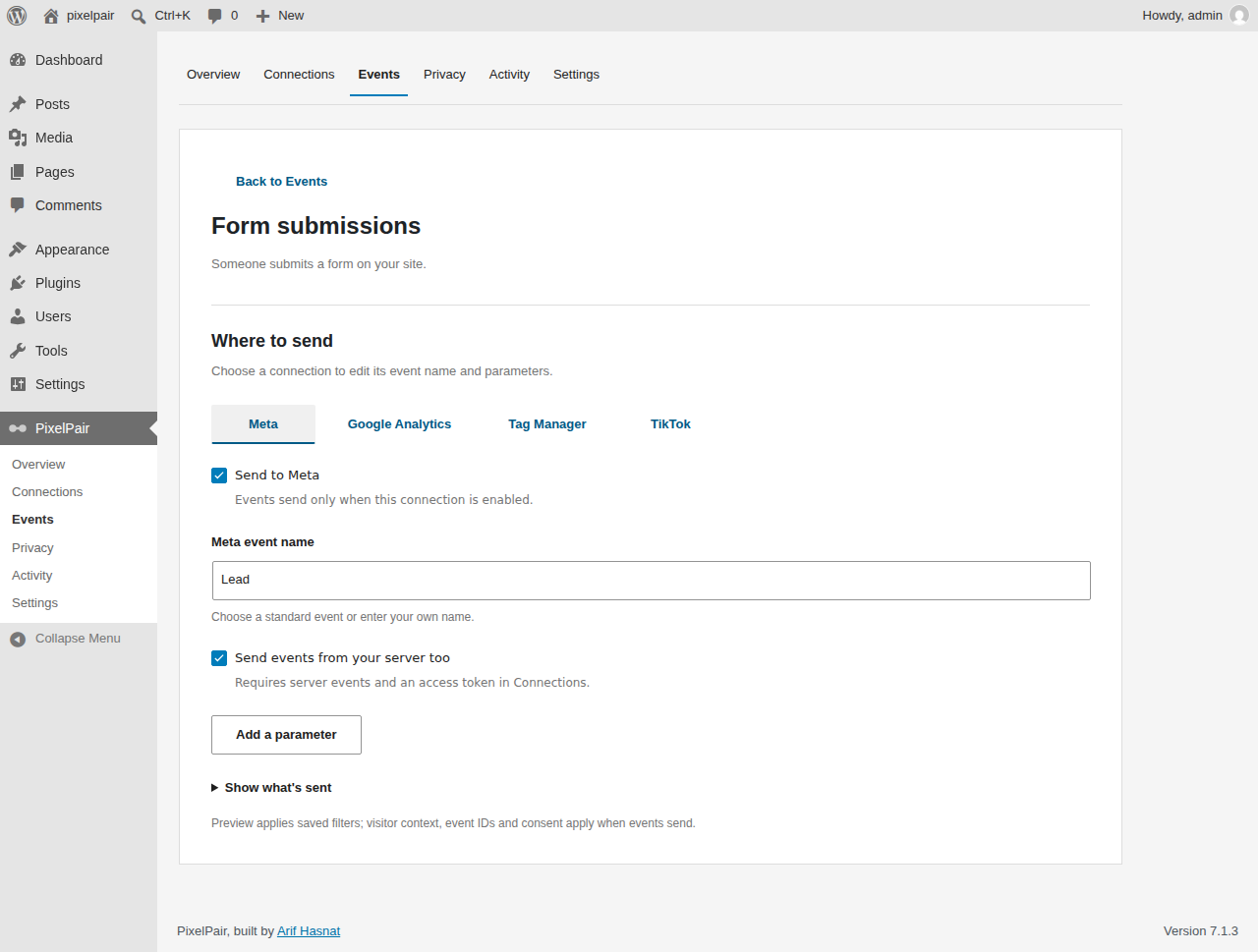
Open an event's details to edit its supported mapping or parameters. Use Show what's sent to inspect the payload preview. Detail forms use Save changes, while the list's on/off switches save immediately.
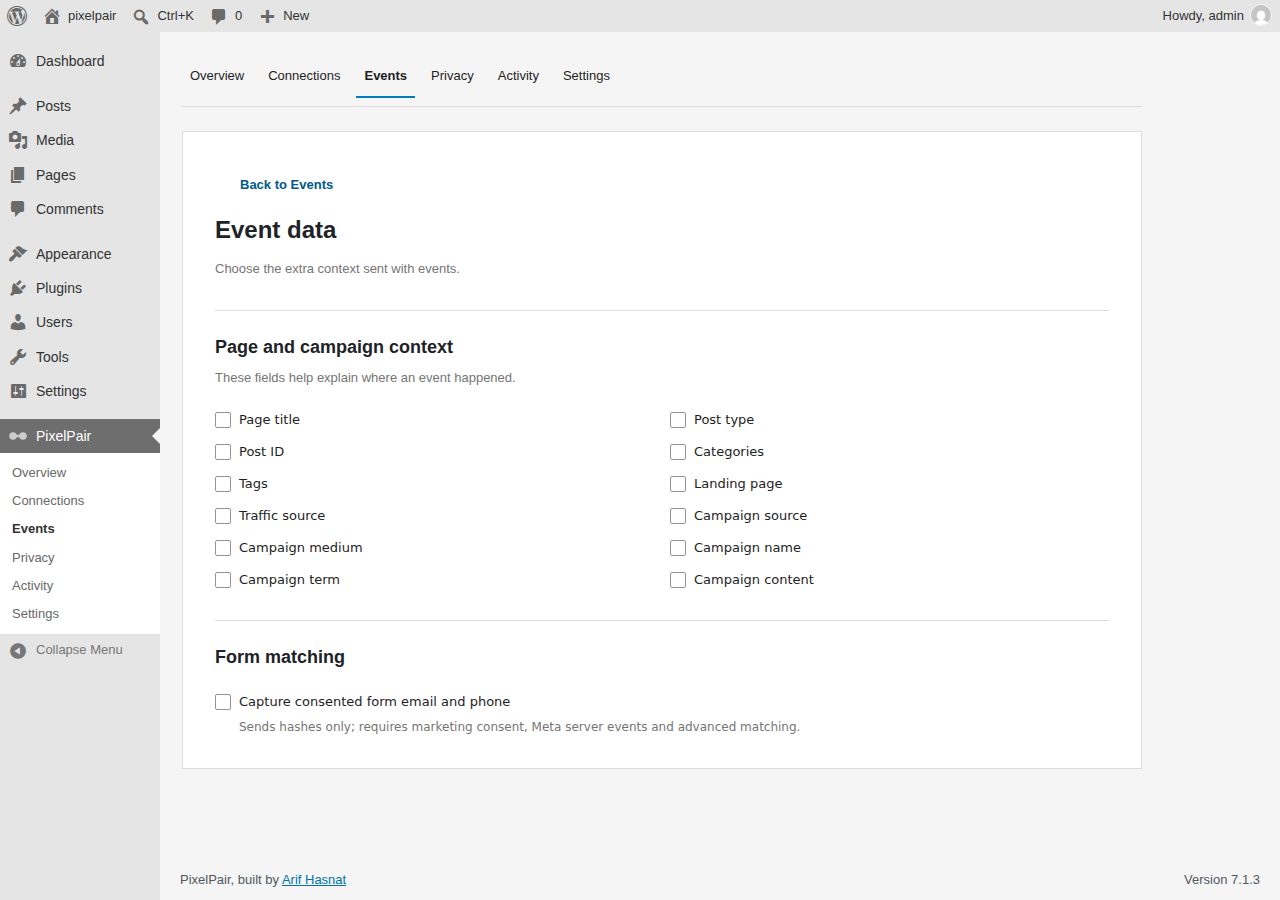
The event data screen controls contextual fields such as page information and attribution. Form-field matching is off by default. Ordinary form submission tracking does not mean arbitrary field contents are sent.
Example: track a Book a call button
Use this example when your site's button has the CSS class book-call-btn.
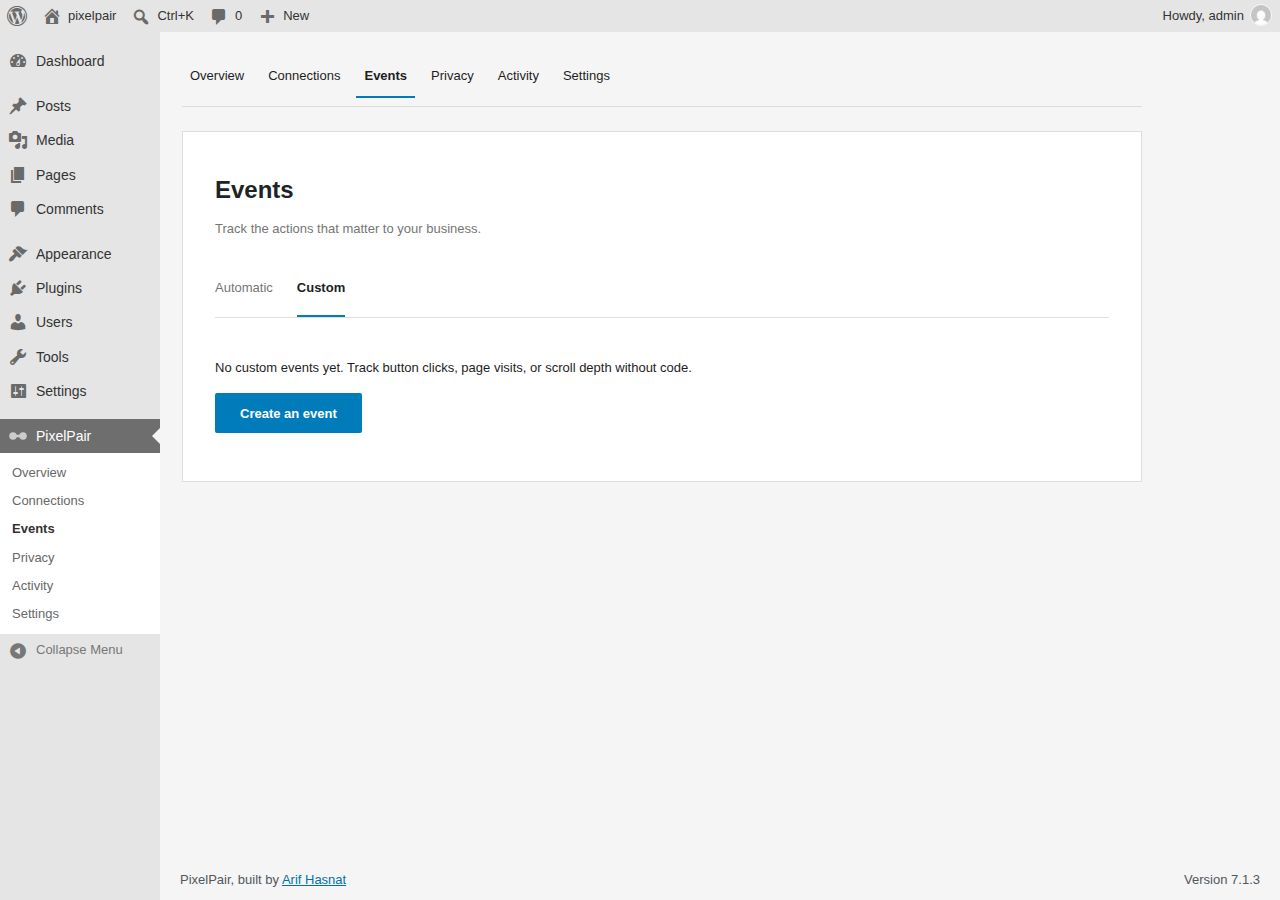
- Open Events → Custom, then New event.
- Name it Clicked Book a call.
- For When, select someone clicks and enter
.book-call-btnas the element selector. - Keep on any page, or restrict the URL if that class is used for unrelated buttons.
- Map the event to Contact for Meta. Add other destinations only when needed.
- Expand Show what's sent to review the generated mapping, then Save and turn on.
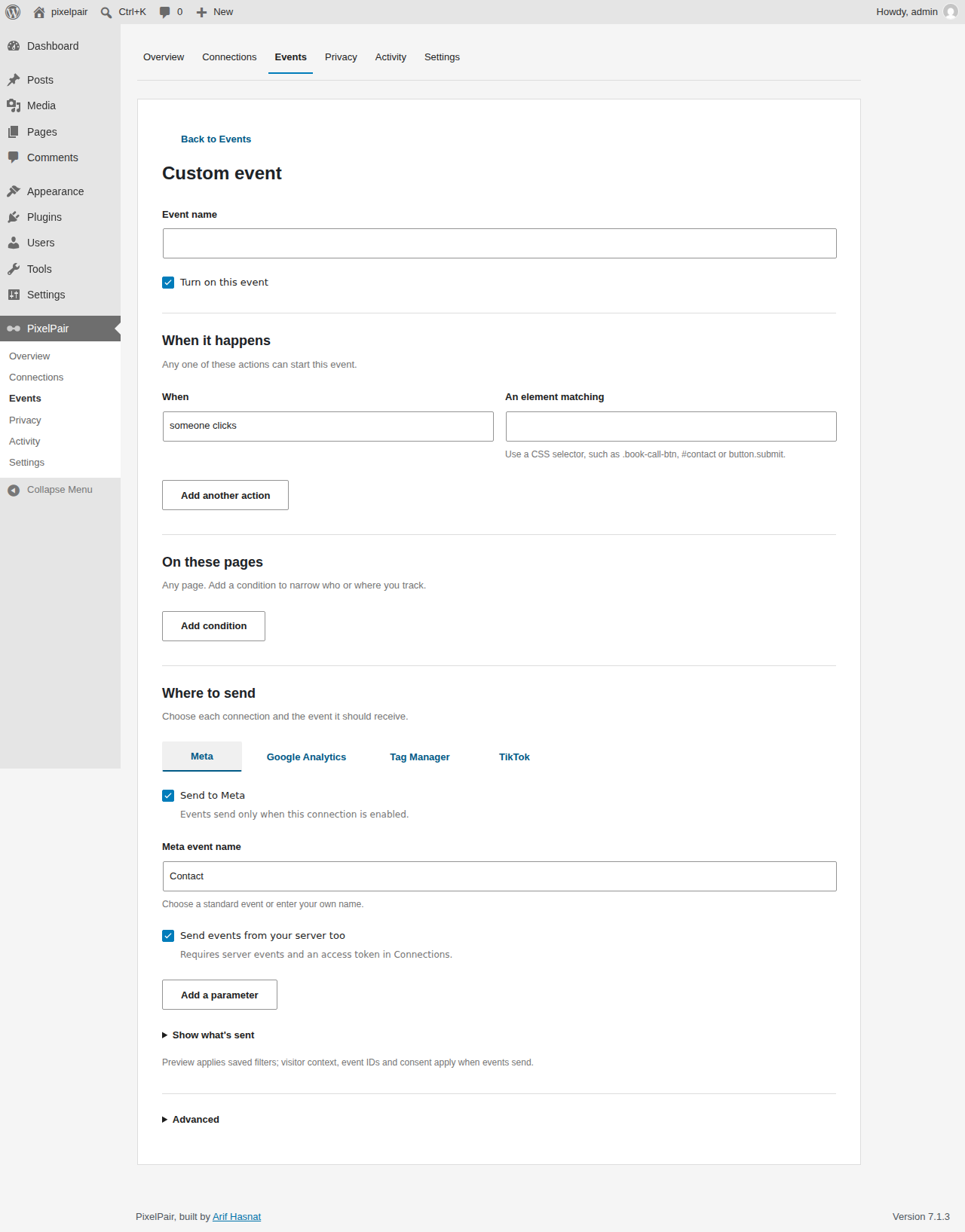
No hand-written payload is needed for this example. Server sending requires the corresponding server connection to be configured. Selector/regular-expression errors appear inline; fix them before saving. Test the actual button while consent is granted and your visitor is not excluded.
Purge shared page caches after saving, pausing or deleting a rule. A deleted or paused rule cannot authorize a new server delivery, but previously cached browser code still needs invalidation. Events already accepted by a platform cannot be recalled.
See event contracts and supported conditions for trigger types, dynamic parameters, once-per-session behavior and integration limits.