Manage connections
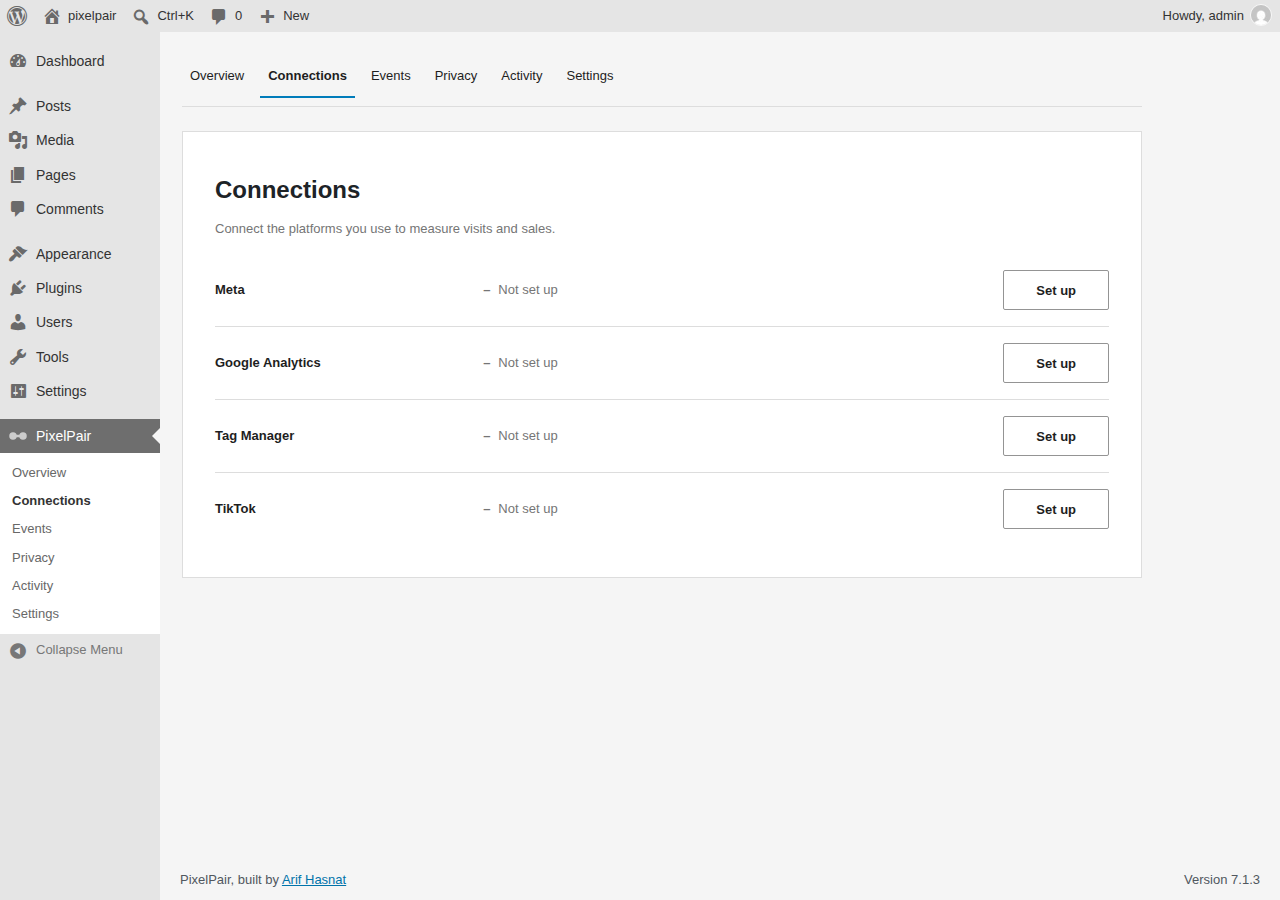
Open PixelPair → Connections. Choose a connection to configure. Forms reveal a sticky Save changes bar when you edit something; Discard restores the last saved values. Advanced options remain collapsed until needed.
Meta
Enable Meta and paste your Pixel ID or base-code snippet. For Conversions API, enable Send events from your server too and enter an access token. An existing token is masked; use Replace token to change it. Blank replacement fields preserve saved credentials.
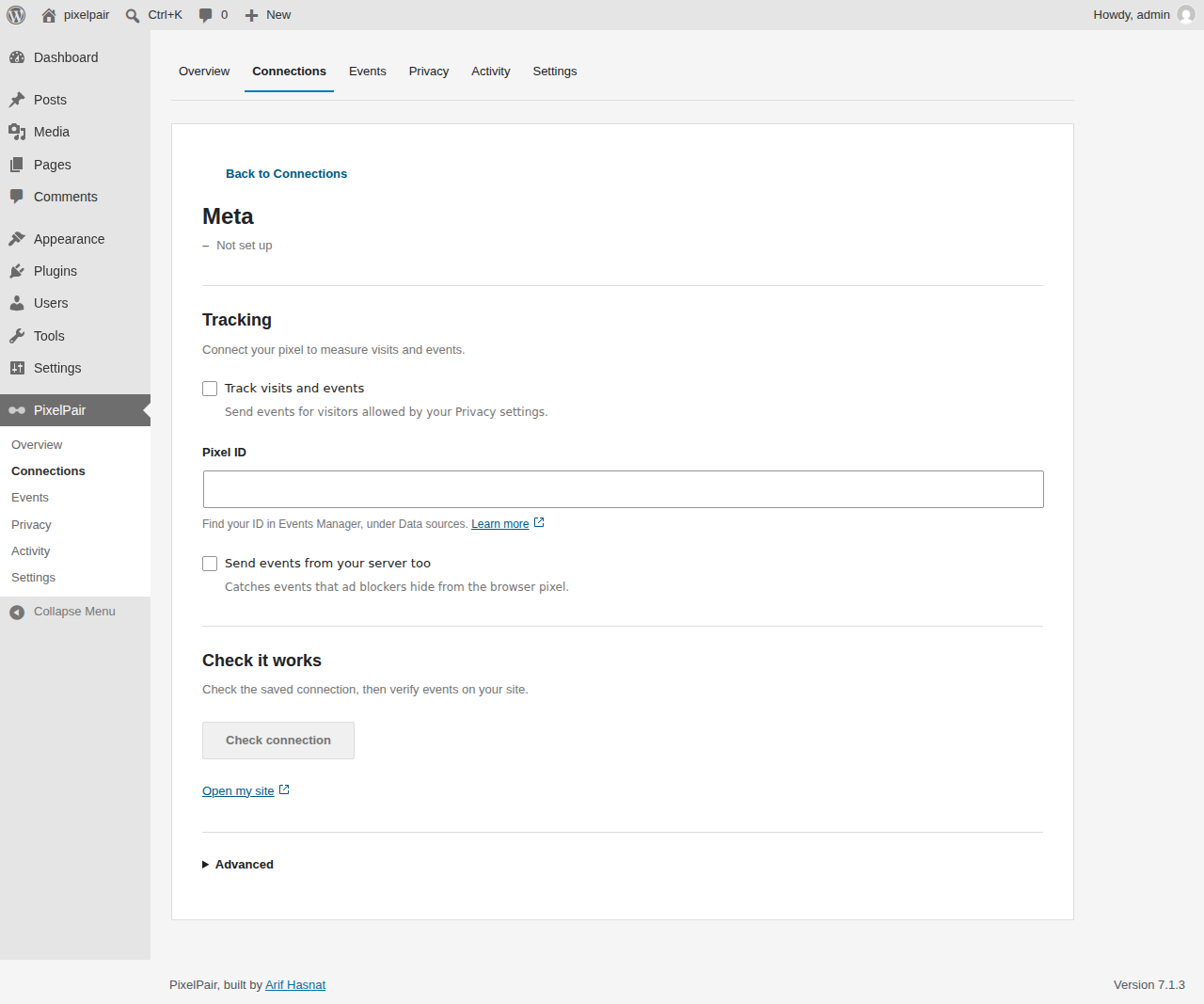
Save changes before running Check connection. A real server check requires server delivery, a stored token and a test event code. Read the plain-language result and expand its response when diagnosing an error. Browser-only checks validate configuration without claiming receipt from Meta.
Advanced contains test mode and matching/privacy options. Enable advanced matching only when appropriate for your site's consent configuration. Turn test mode off after verification; it has an expiry to limit accidental ongoing use.
Official references: find a Pixel ID · configure Conversions API. Also see server delivery details.
Google Analytics
Enable Google Analytics and enter the Measurement ID beginning with G-. Pasting a supported Google snippet extracts the ID. Choose Advanced only when you need debug or tagging options, then save.
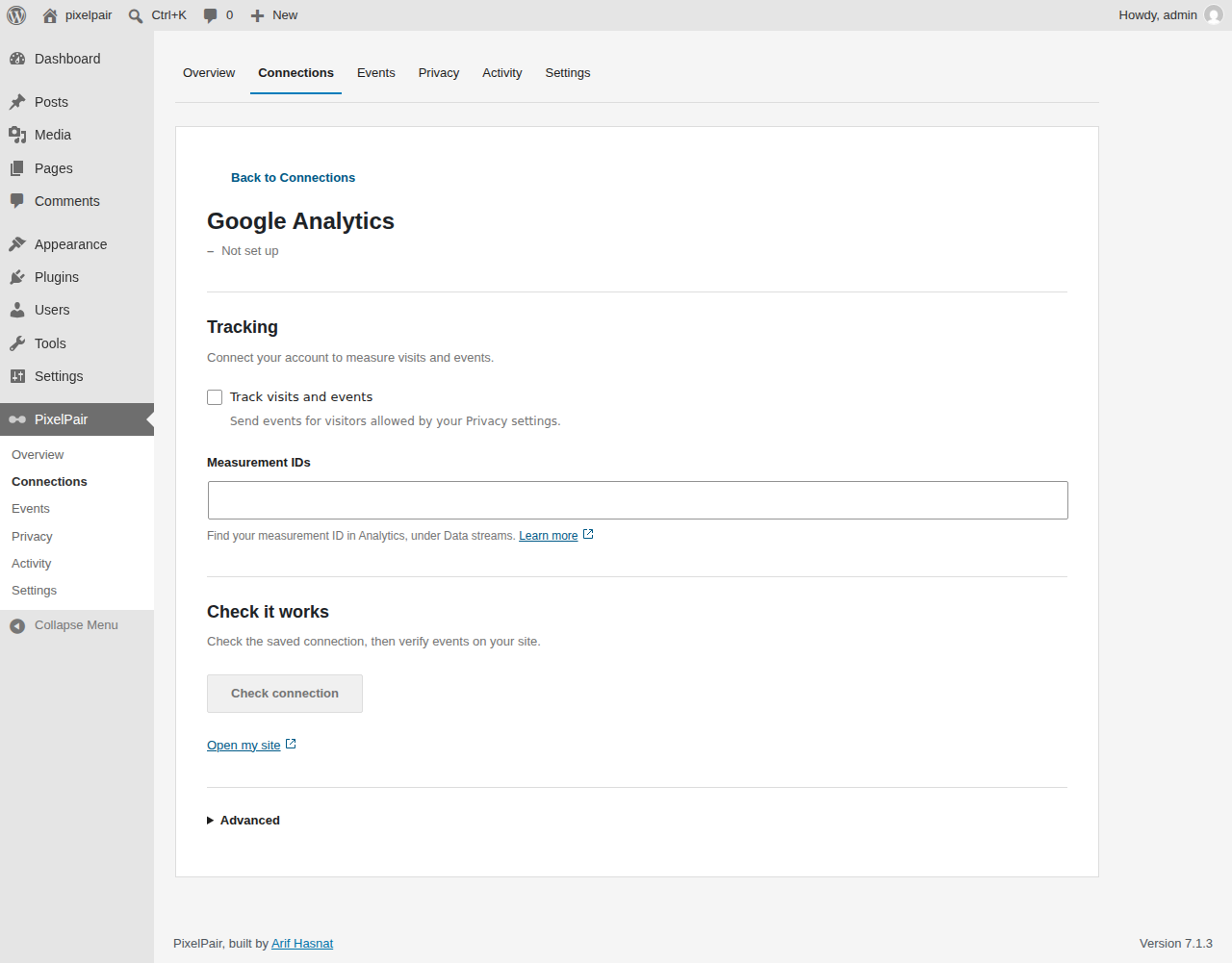
PixelPair sends Google Analytics events through the browser. Verify events in your property's DebugView/Realtime tools; a saved ID is not proof of receipt. Do not also deploy the same analytics tag through Tag Manager unless you have disabled the duplicate path.
Official reference: find your Measurement ID.
Tag Manager
Enable Tag Manager and enter the container ID beginning with GTM-. Manage and publish the tags inside Google's own container interface. PixelPair's container starter download is under Advanced; review its contents before importing and publishing it in Tag Manager.
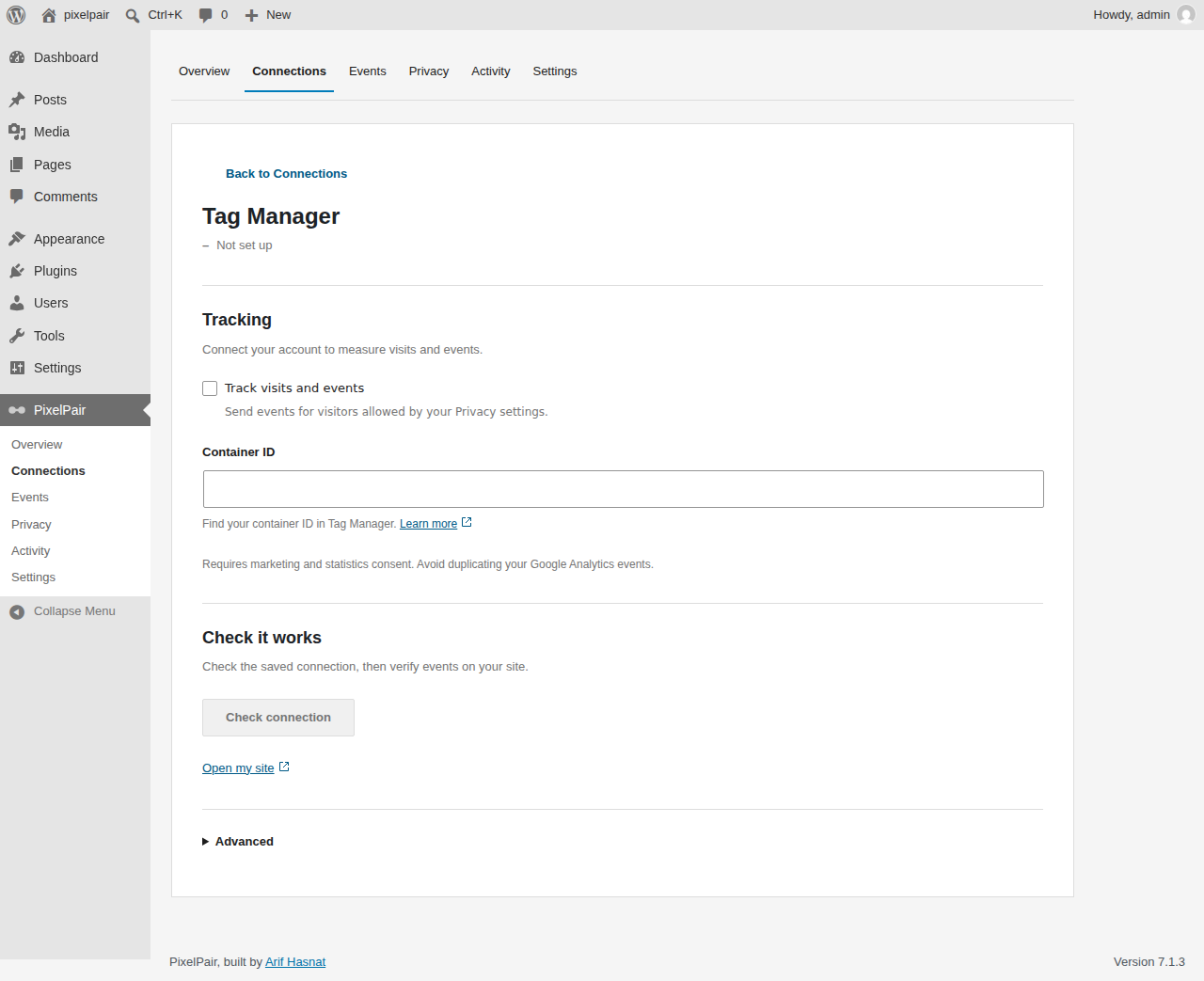
Tags in the container need their own appropriate consent configuration. PixelPair uses basic consent mode and waits for the required categories before loading Google scripts. See Google consent behavior.
Official reference: find your Google tag or container ID.
TikTok
Enable TikTok and enter its 20-character Pixel ID. Turn on server delivery and supply an Events API token when you want server events too. Save changes, then use Check connection; a real server test also needs a test event code.
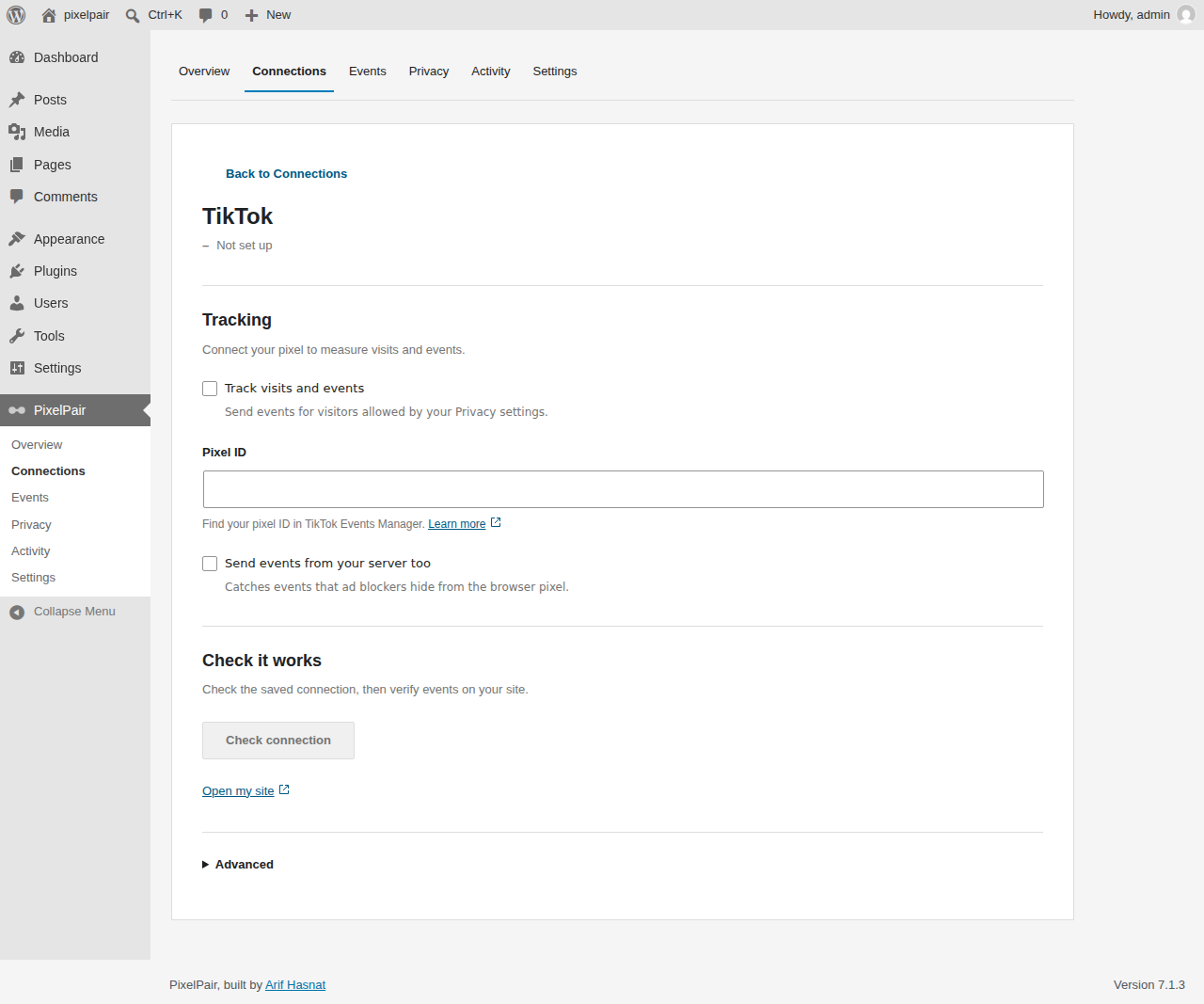
Browser and server events use a shared event ID. The browser SDK and optional matching wait for marketing consent. Verify live receipt in TikTok's own dashboard; intercepted automated tests do not establish account acceptance.
Official references: find a Pixel ID · get started with Events API.
When a check fails
Confirm the ID and token belong to the same destination. Replace rejected credentials in the connection form. For timeouts, check your host's outbound HTTPS connectivity. Enable server logging in Activity to inspect future deliveries with sensitive values redacted. See troubleshooting.