Connect an external AI tool
PixelPair can expose its settings and events to an authenticated MCP client. It does not include an AI chat, model provider connection or subscription.
Open Settings → Manage AI access. This screen shows whether WordPress and the official MCP Adapter are available, along with your endpoint and site ID.
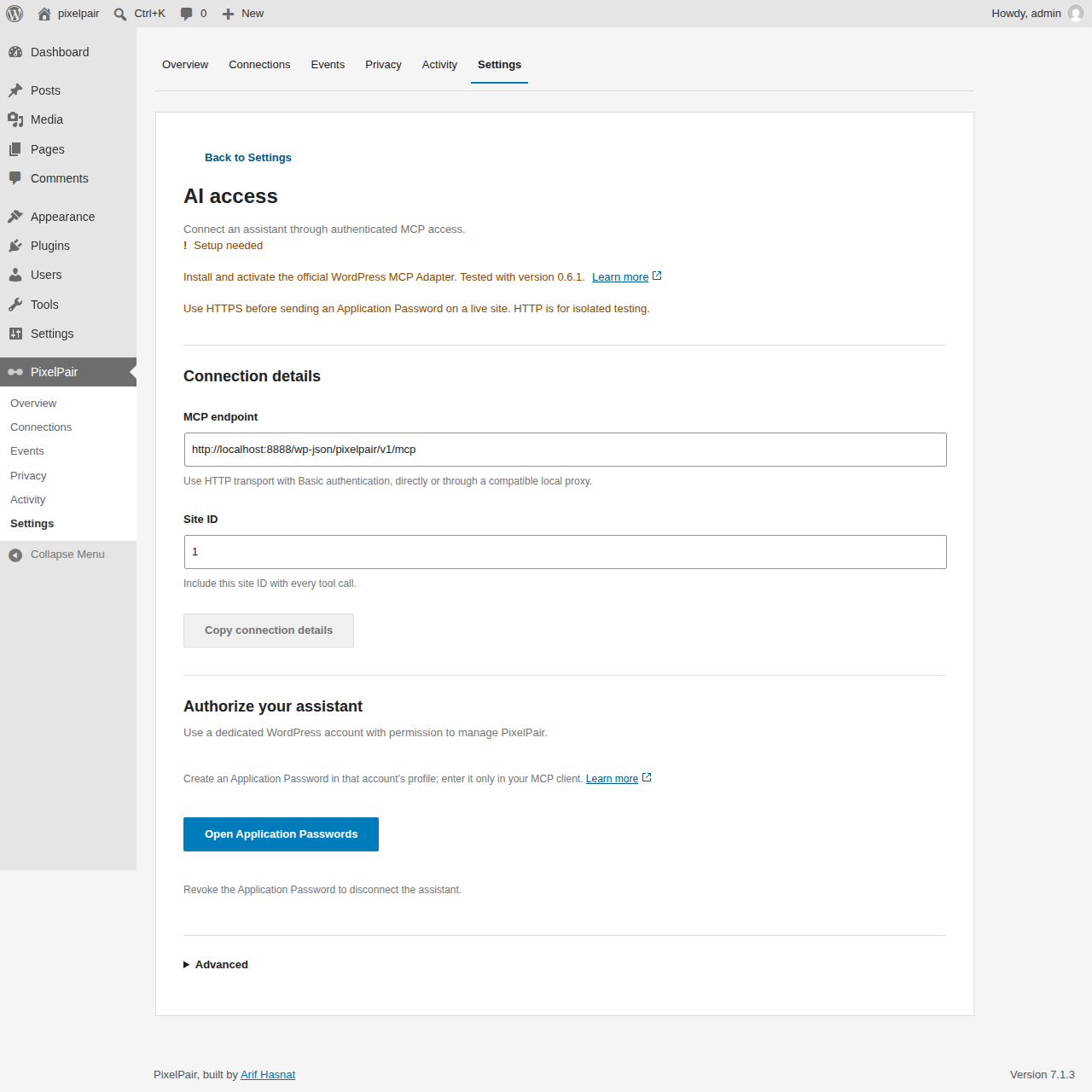
- Use WordPress 6.9+ and install the official WordPress MCP Adapter.
- Create a dedicated WordPress account with
manage_pixelpair. Grant the capability through Settings to an appropriate role. - Create an Application Password in that account's WordPress profile.
- Configure your client's HTTP transport to use the displayed endpoint and HTTP Basic authentication over HTTPS. Use the account username and Application Password. Some clients need a compatible local proxy for custom authentication.
- Initialize the session, list tools and run
pixelpair-auditwith your actualsite_idbefore proposing changes.
The client can inspect settings, events and redacted logs, and create/update/toggle/delete events through validated tools. Settings changes can turn on live tracking. Review proposed changes in your client; event deletion requires explicit confirmation in the tool arguments.
Tokens, raw scripts, role grants, arbitrary PHP and arbitrary network requests are unavailable through this interface. Calls are site-specific on multisite. Revoke the Application Password in WordPress to disconnect the client.
See the complete MCP authentication and tool reference for argument names, restrictions and test coverage.